 Ref Timer
How to use Ref Timer
A match timer for referees on your wrist, and a website that shows how you moved, what happened and how your season is going.
Ref Timer has two parts:
- The watch app on an Amazfit Balance times the match, buzzes before and at the end of each half, records your GPS track and heart rate, and lets you log goals and cards.
- This website receives each match after full time. It shows where you ran on a pitch drawing, your distance, sprints and top speed, a timeline of goals and cards, and trends across your season.
Matches travel watch → Zepp app on your phone → ref.bokin.fyi. Nothing is lost if the phone is out of range: the watch keeps the match and sends it later.
Not a referee with an account? If someone sent you a link to a match, see Viewing a shared match.
- Sign in on ref.bokin.fyi with Google.
- Install Ref Timer on your watch (from the Zepp app's developer mode for now: scan the QR code you were given).
- Connect your watch once, so its matches come to your account: Connect your watch.
- Optionally, set up your upcoming matches so the watch has the teams and format ready.
Then referee a match. After full time, open the website.
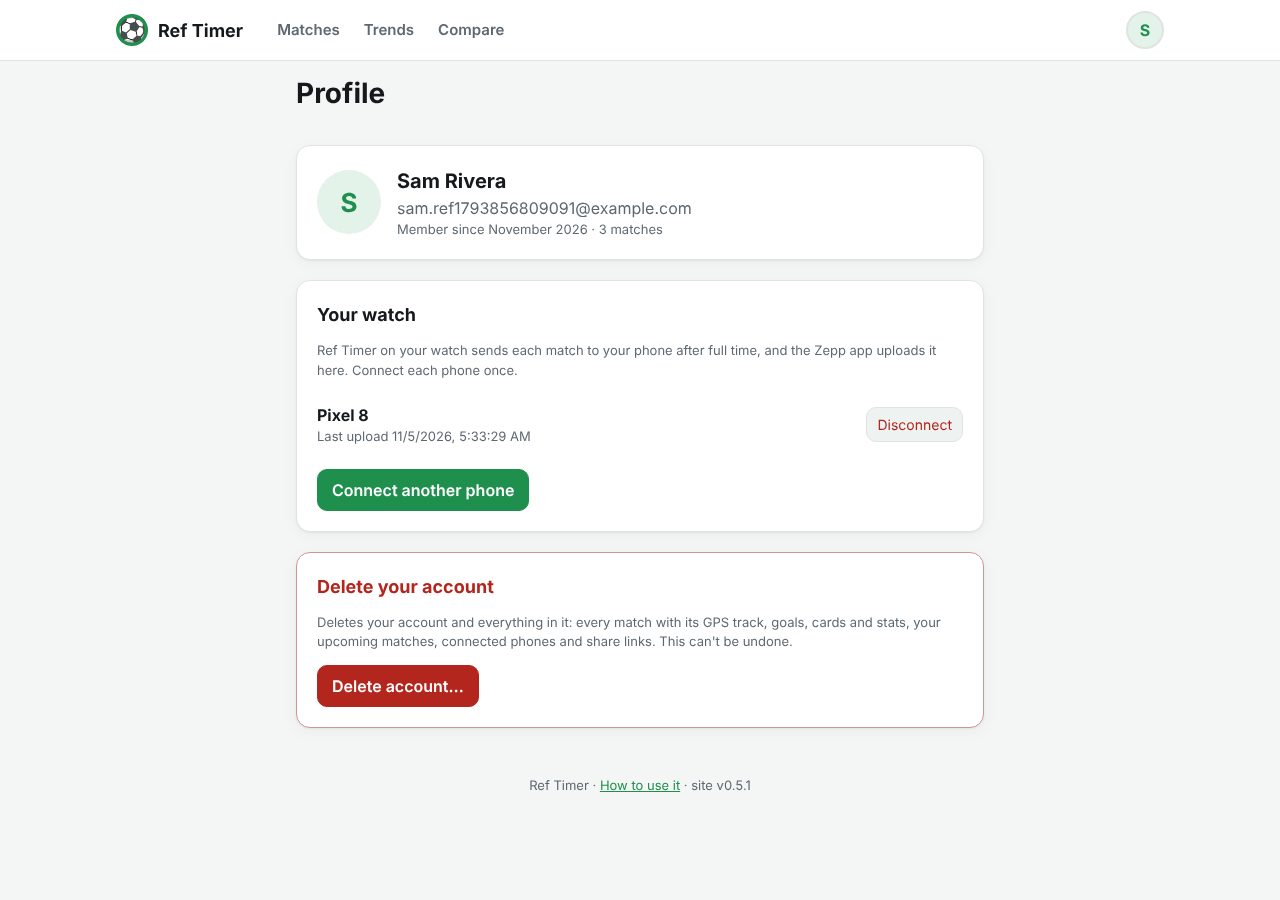
- Open the avatar menu (top right) and choose Profile and watch.
- Under Your watch, choose Connect a watch. You get a 6-character code, valid for 10 minutes.
- On your phone, open the Zepp app → Profile → your watch → App List (or Apps) → Ref Timer, and type the code into Pairing code.
The page updates when the phone connects. The phone keeps a long-lived key, so you only do this once per phone. Disconnect on the profile page stops a phone uploading straight away.
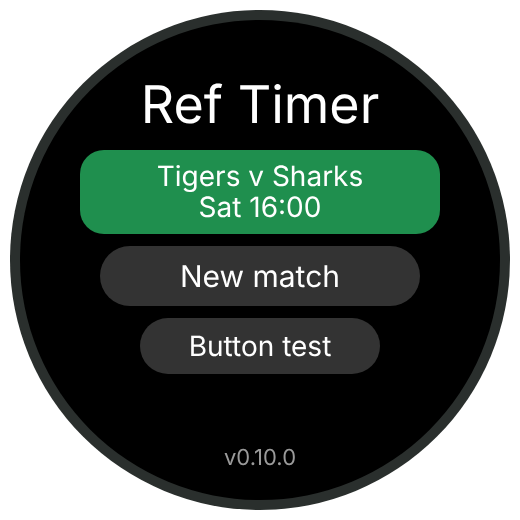
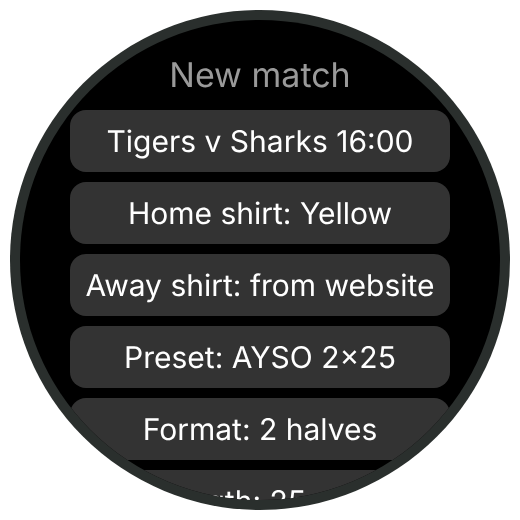
Tap New match (or an upcoming match), then tap any row to step through its values, and Ready.
| Row | What it does |
|---|---|
| Match | An upcoming match from the website: fills in teams, shirt colours and format. |
| Home shirt, Away shirt | The teams' shirt colours (12 to choose from), so the kick-off buttons, Goal/card screens and the website show the teams the way they look on the field. An upcoming match fills them in; you can still change them. Remembered for next time. |
| Preset | AYSO 2×20 to 2×35 (mid-half water breaks, 5 min half-time), Adult 2×45, and Test 2×30s, which runs a whole match in about 75 seconds so you can feel every alert. |
| Format, Length | 2 halves or 4 quarters, 10–45 minutes each. |
| Clock | Count up or count down. Counting up, the 2nd half can start from 45:00 (or whatever the half length is) or 00:00. |
| Half-time, Q break | Break lengths. The watch counts them down and buzzes before they end. |
| Water | A 2–4 minute water break in the middle of each half. The clock keeps running through it. |
| Warn | Buzz this many minutes before each period ends. |
| Stoppage | Off by default. On adds a separate counter for time to add on. Off, you just let the period run over (the red +mm:ss) and Goal/card gets the whole bottom row. |
| GPS | Records your track every 2 seconds. Keeps the screen on, because the watch only allows GPS while the app is open. |
| Heart rate | On by default. Recorded with the GPS points, or on its own if GPS is off. |
| Screen | Always on, or Normal (the watch turns the screen off as usual; alerts still wake it). |
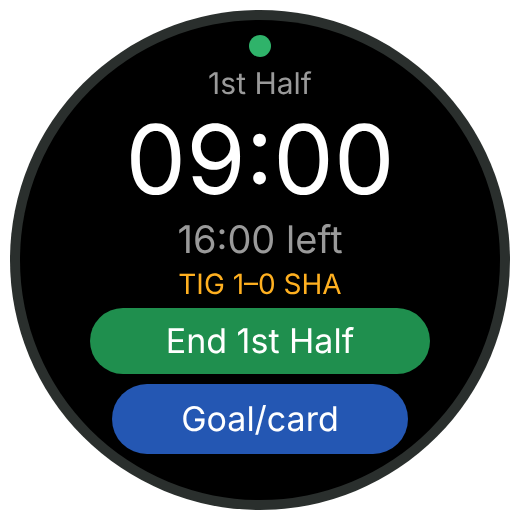
The big clock is the match time. Under it: time left, the score once there's a goal (or the teams are named), and stoppage if it's on.
Once time is up, the clock holds and a red +mm:ss shows how far over you are. The period only ends when you end it.
| Before kick-off | During a period | In a break | |
|---|---|---|---|
| Upper button (crown) click | Kick off | Nothing (shows "Hold to end") | Start next period |
| Upper button long press | — | End the period | — |
| Lower button click | Back | Stoppage on/off (if on in setup) | — |
| Lower button long press | Back | Undo kick-off (first 2 minutes of the 1st half) | Undo end (for 2 minutes) |
| Big green button | Kick off (tap twice if no team is picked) | End period (tap twice) | Start next period |
| Goal/card | — | Log a goal or card | Log a card |
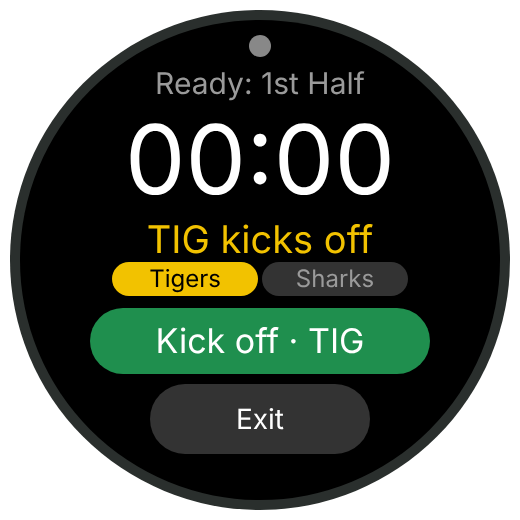
Who kicks off. Before kick-off, tap the team kicking off (tap again to clear). In each break the screen says who kicks off next, in their shirt colour: the other team for the 2nd half (quarters alternate). The timeline on the website shows it too.
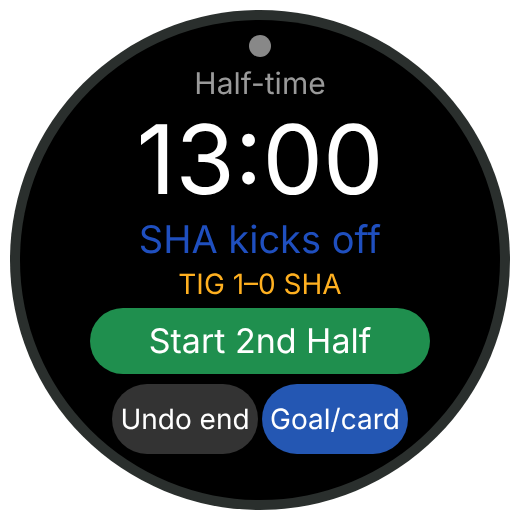
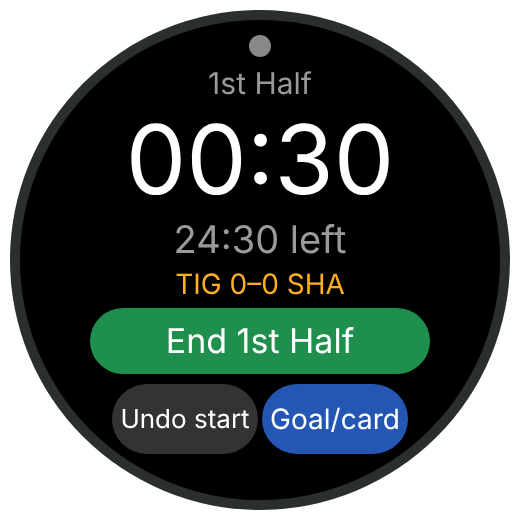
Kicked off too soon? For the first 2 minutes of the 1st half, Undo start sits beside Goal/card. Tap it twice (or hold the lower button) to go back to before kick-off, with the teams and who kicks off still set. It goes away after 2 minutes, or once you log a goal or card.
With no team picked, Kick off asks for a second tap, so a tap meant for the team buttons doesn't start the match.
Noticed later? Fix the times on the website: Correcting half times.
Alerts buzz before each period ends (as set in Warn), when time is up, for water breaks and restarts, and before a break ends. Each buzz stops by itself after a few seconds; any press stops it sooner, and that press does nothing else, so you can't end a half by accident while silencing.
| When | Vibration |
|---|---|
| Minutes left in a period (Warn) | One short buzz |
| Period time is up, and full time | Two strong buzzes |
| Water break starts | Two strong buzzes |
| 30 seconds before play restarts | One short buzz |
| Water break over, restart play | One long buzz |
| 1 minute before a break ends | One short buzz |
| Half-time or a quarter break is over | Two long buzzes |
| Any button you press | A tiny tap, so you know it registered |
Turning the crown and swiping back do nothing while a period or break runs, so a wrist bend can't change anything.
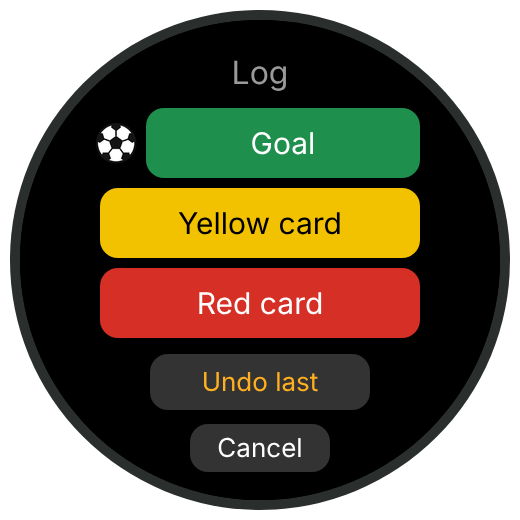
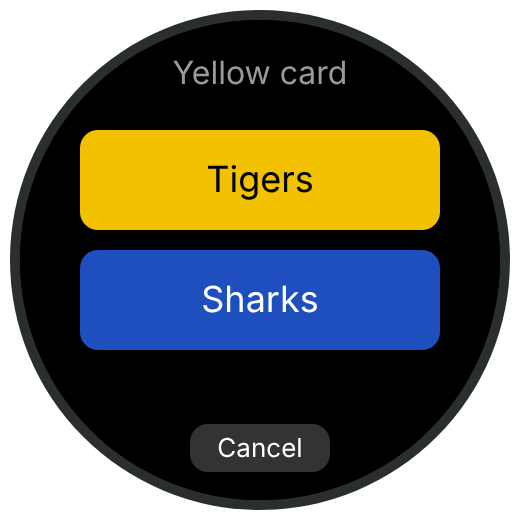
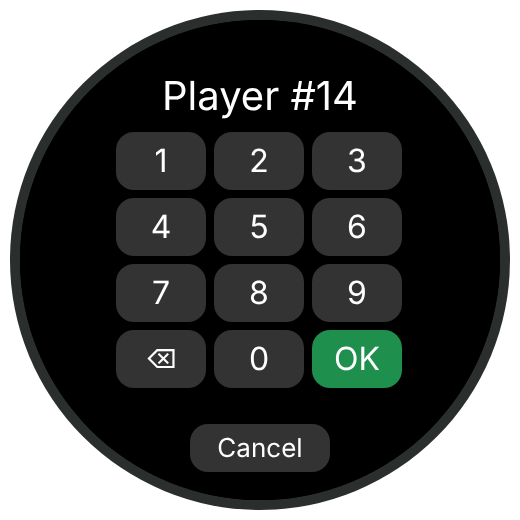
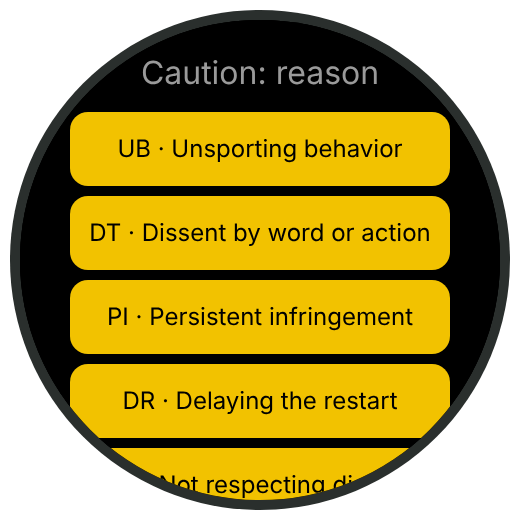
Tap Goal/card. The clock, alerts and GPS keep running underneath.
- What: Goal, Yellow card or Red card. Undo last removes the last thing you logged.
- Team, in their shirt colours if the match came from the website. For a goal, tap Penalty or Own goal first if it was one; the title turns yellow and says so (tap again to undo). An own goal is logged for the team it counts for, and the number you type is the player who put it in.
- Player number on the pad, or Skip. For a card to team staff, tap Staff (in the bottom-left corner of the empty pad) and choose Coach, Asst coach or Other official.
- Reason, for cards: a list in the card's colour, each row the code and what it means. Swipe up for more; No reason is at the bottom. Cautions: UB unsporting behavior, DT dissent, PI persistent infringement, DR delaying the restart, FRD not respecting the distance, E entering and L leaving without permission. Send-offs: SFP serious foul play, VC violent conduct, S spitting or biting, DOGSO by handball or foul, OL offensive language, 2CT second caution.
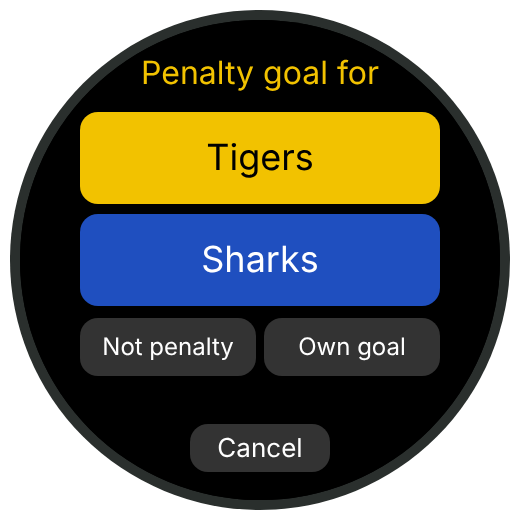
A second yellow for the same number (or the same coach) logs a red (2CT) as well. The lower button goes back a step.
If an alert comes due while you're typing, it buzzes but the screen stays where it is. Your next tap stops the buzz and still counts.
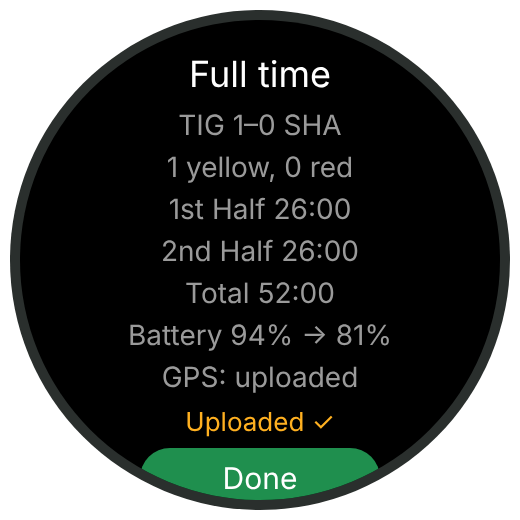
Ending the last period opens the summary: the score, cards, how long each period ran, the battery used, and the upload status.
- Uploaded ✓: it's on the website.
- Waiting for phone: the phone is out of range or offline. The match stays on the watch and is sent the next time the summary or home screen opens; the home screen says how many are waiting.
Every match waiting goes up, oldest first, not just the last one: two matches back to back with the phone in your bag both upload once you're back in range.
The GPS file is deleted from the watch only after the website confirms it has it.
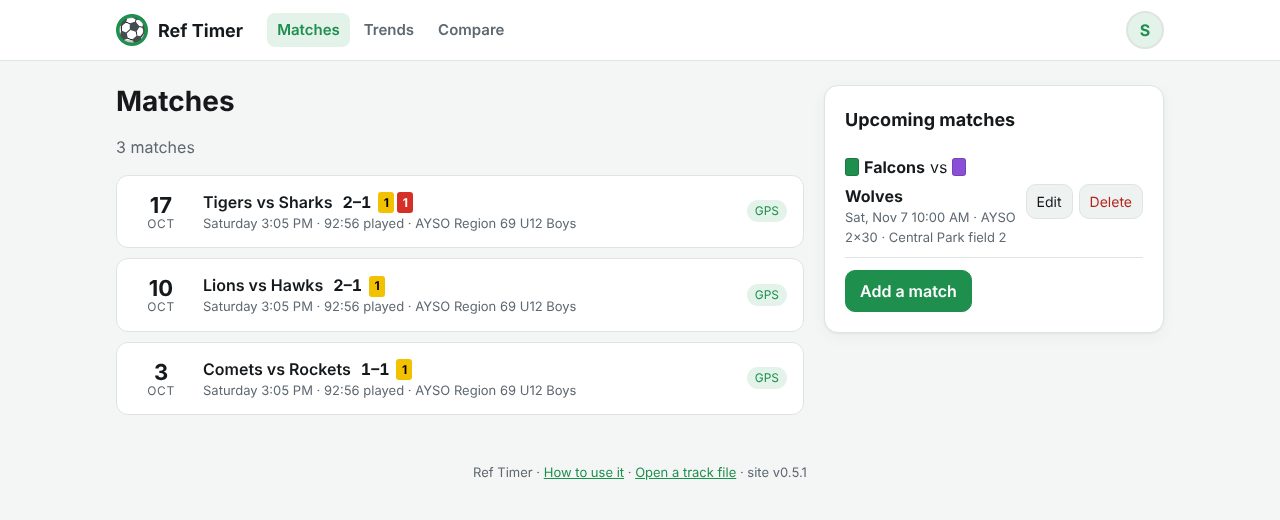
Each row shows the date, the match name, the score and cards, how long it was played and whether it has a GPS track. Tap one to open it. The top bar has Matches, Trends and Compare, and your avatar menu.
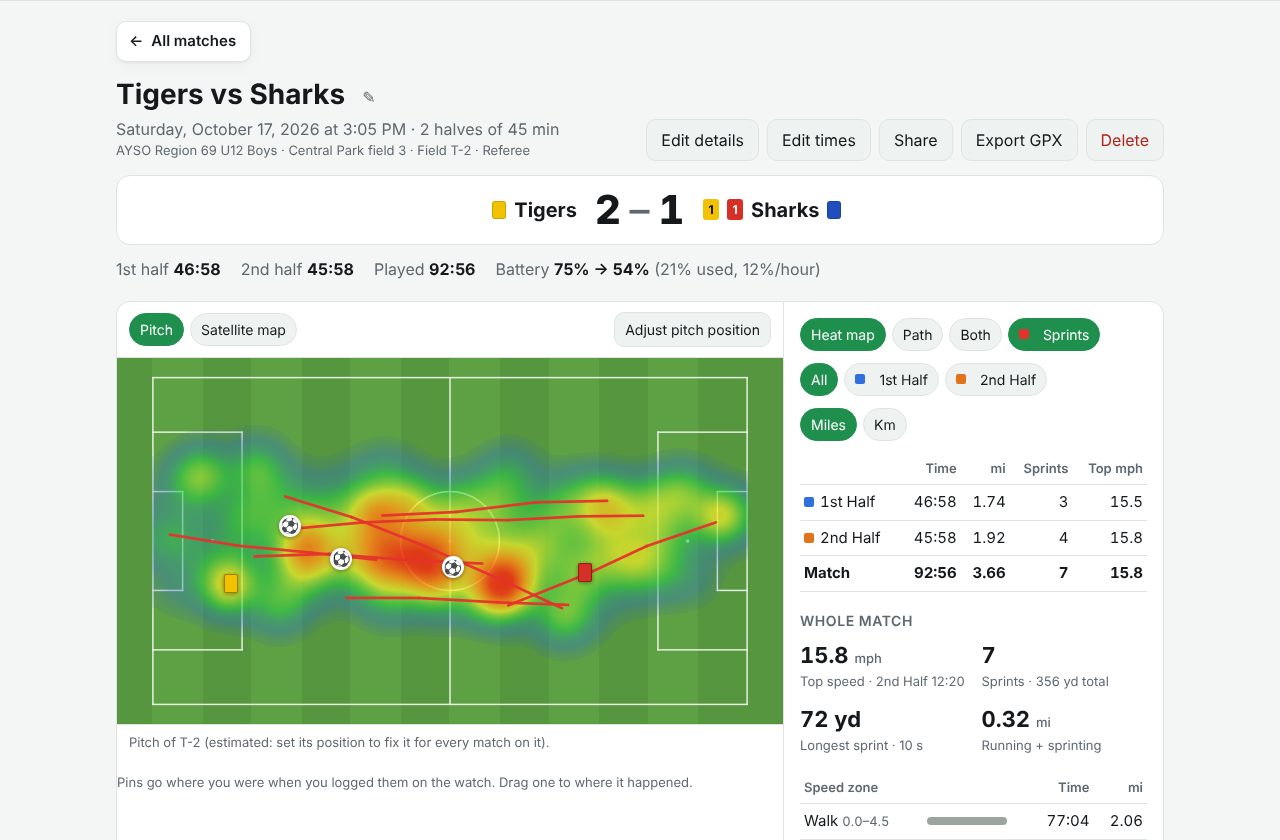
At the top: the name, date, competition and venue, the score with shirt colours and card counts, how long each half ran, and the battery the watch used.
A row of buttons under that jumps to each part of the page (Map, Positioning, Speed zones, Heart rate, Sprint map, Timeline); it stays at the top as you scroll and shows where you are.
Below that, the map area and the stats panel; under them, boxes for Positioning, Speed zones, Heart rate, the Sprint map and the Timeline. All, 1st Half and 2nd Half apply to the boxes too, and each says which part it shows.
- Pitch or Satellite map: your run on a pitch drawing, or on the real map.
- Heat map Path Both: where you spent the most time, the line you ran, or both. Sprints shows your sprints in red.
- All 1st Half 2nd Half (or quarters): which part of the match to show, on the map and in the stats. Warm-up and breaks are left out.
- Miles or Km (remembered in this browser).
Goals (⚽) and cards are pinned where you were when you logged them, which is usually on your way back to the centre circle. To move one to where it actually happened, open Edit details: while it's open each pin is labelled with its time and team, pressing one lights up its row in the timeline, and you can drag it on the pitch or the map. Put them back under the map undoes it. The owner also has Edit details, Edit times, Share, Export GPX (for Strava or Google Earth) and Delete.
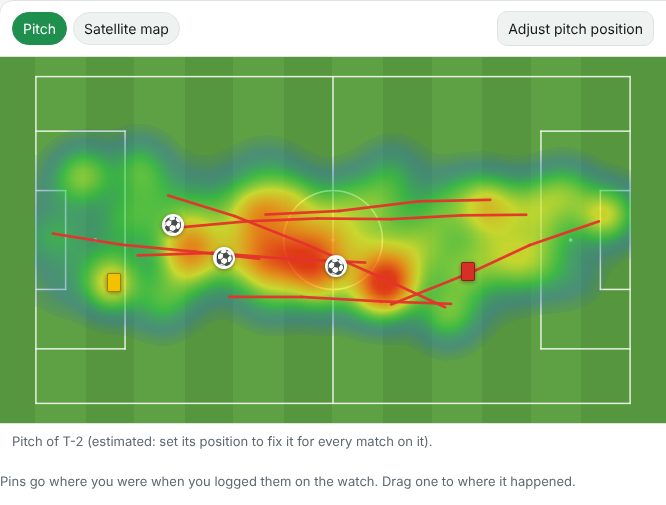
Real fields face every direction. The pitch view turns your run so it sits on a standard sideways pitch, which is what makes two matches comparable side by side and lets Trends average your positioning over a season.
To do that it needs to know where the pitch is. Until you tell it, it estimates the pitch from your run (the page says so). The estimate follows your diagonal, so it can sit turned by around 20°. To set it exactly:
- Choose Adjust pitch position. The map switches to satellite.
- Drag corners 1, 2 and 3 onto three corners of the pitch: 1 to 2 along a touchline, 1 to 3 along a goal line. The fourth corner follows. The size shows underneath.
- Know the size? Type it (for example 100 × 64 m) and tick Keep size. Then corner 1 moves the whole pitch, corner 2 turns it and corner 3 picks which side of the touchline it lies. That's much easier on a field with no lines on the satellite picture.
- Swap ends turns it round if you'd rather see it the other way. Then Save pitch.
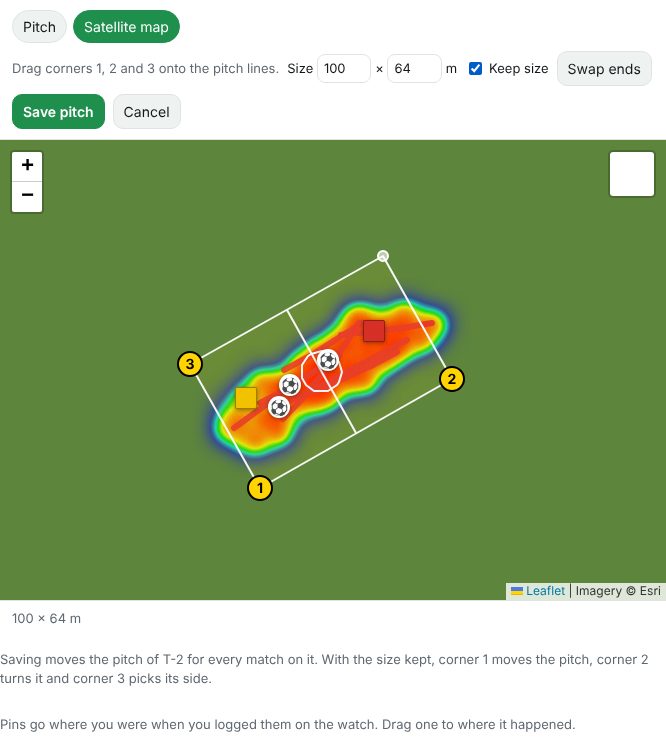
Do this once per field: see Fields.
A field is a named pitch, like "T-2", that every match played on it shares. Set its position once, and adjusting it on any of its matches moves it for all of them, stats and heat maps included.
- Make one in Edit details: Field → New field…. It starts from the match's pitch, if you've set one.
- Plan ahead: pick the field on an upcoming match, and the match played from it arrives on that field.
- Found for you: a match whose run falls on a field you've set up is put on that field when you open it.
Deleting a field leaves its matches with its pitch as their own.
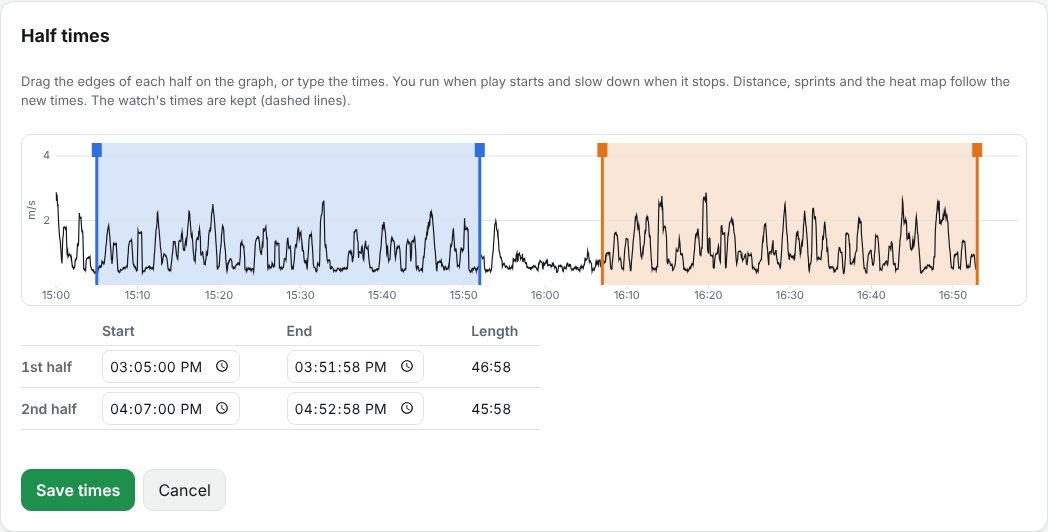
Started the clock a minute early, or forgot to end a half? Edit times shows your speed through the whole match with each half shaded. You run when play starts and slow down when it stops, so the real kick-off and whistle are easy to spot.
- Drag the edges of each half on the graph, or type the start and end times (to the second).
- Save times: distance, sprints, the heat map, the half lengths and the timeline all follow.
- The watch's times stay as dashed lines; Reset to the watch's times puts them back. The match shows (times corrected) while yours are in use.
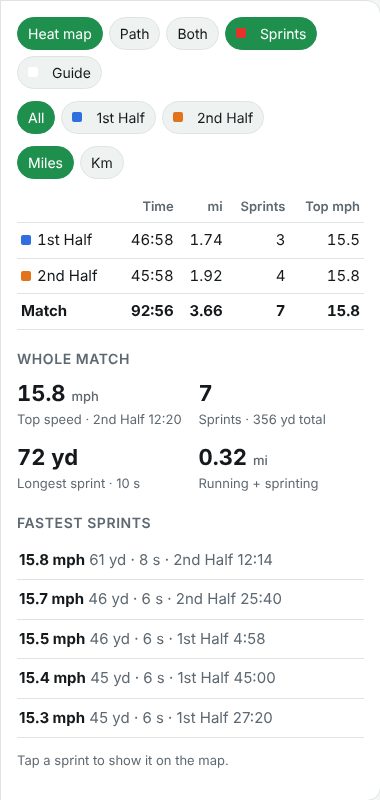
- Distance
- Added up between GPS points (one every 2 seconds), skipping GPS jumps and gaps.
- Speed
- Smoothed over about 6 seconds of points, so one wobbly GPS point doesn't count as a sprint.
- Speed zones
- Walk up to 4.5 mph (7.2 km/h), jog to 8.9 (14.4), run to 12.3 (19.8), sprint above that.
- Sprint
- A stretch above 12.3 mph (19.8 km/h), the usual threshold in match analysis.
- Running + sprinting
- Distance in the run and sprint zones: the high-intensity part of your match.
- Top speed
- Your fastest smoothed speed, with when it happened.
- Fastest sprints
- Tap one to see it highlighted on the map.
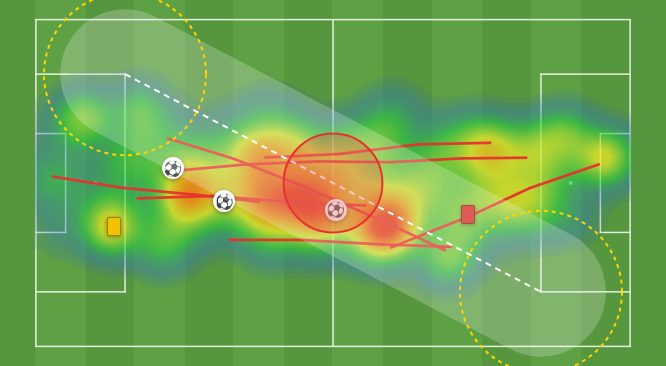
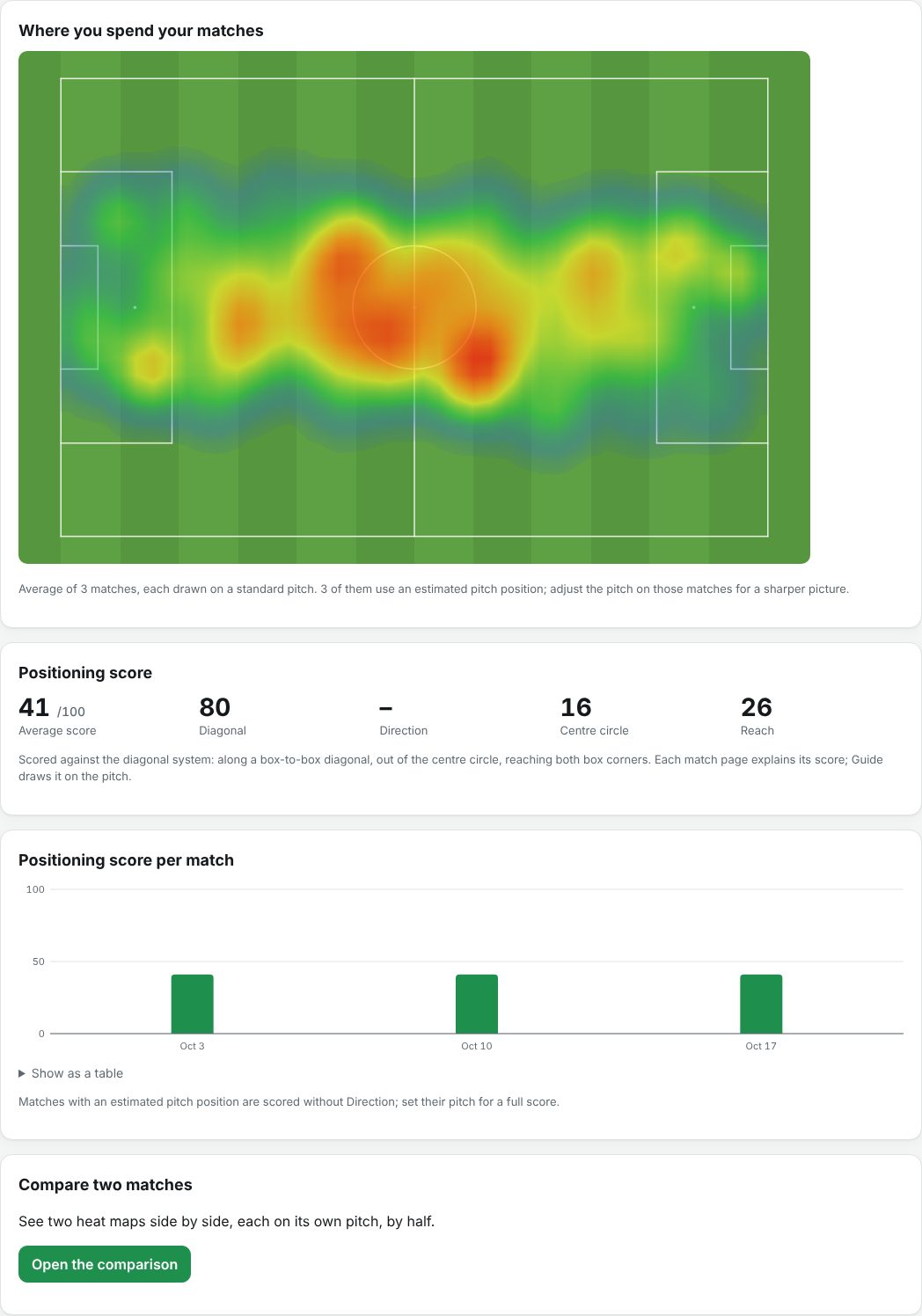
The Positioning box scores how your run fits the diagonal system of control, 0 to 100 for each of four habits, and their average:
- Diagonal: time within 12 m of your box-to-box diagonal. Aim for 75%.
- Direction: whether your runs go the diagonal's way, or flatter along the middle.
- Centre circle: time in it, compared with an even spread over the area between the two penalty areas (where you actually work). That share or less scores 100.
- Reach: how often you get near the box corner at each end of your diagonal.
Which diagonal: your usual one is bottom-left to top-right as the pitch is drawn, with the assistants top-left and bottom-right. If a match was set up the other way, tap Use the other diagonal in the Positioning box. On a field that's remembered for the field, so every match there (past and future) uses it; otherwise it's saved for that match. Back to your usual diagonal undoes it. The Guide marks where the ARs stand.
Assistant referee or 4th official: pick that as Your role when you set up the match, or later in Edit details, and the match isn't scored, since you're on the touchline. Distance, sprints, speed zones, heart rate and the heat map work as usual; the match is left out of the positioning trend and the career heat map.
Tap Guide to draw it on the pitch. Each half is scored too (pick it with 1st or 2nd Half), and Trends shows your score match by match.
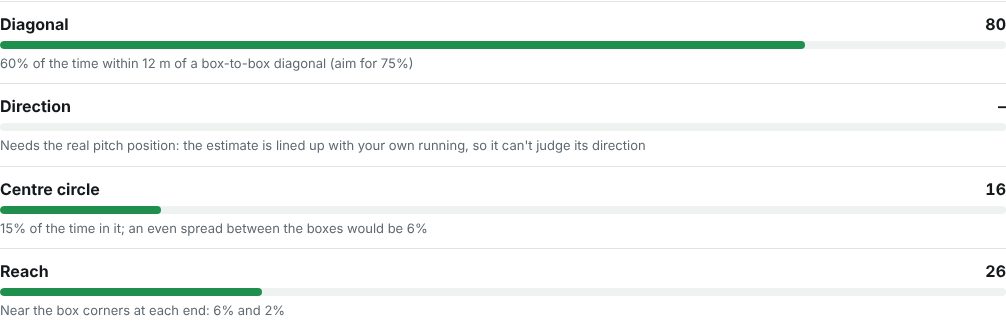
The score can't see where the ball was: a match played down one wing scores lower without anything being wrong. It's a guide to habits, best read as a trend. It also needs the right pitch position; with an estimated one it says so.
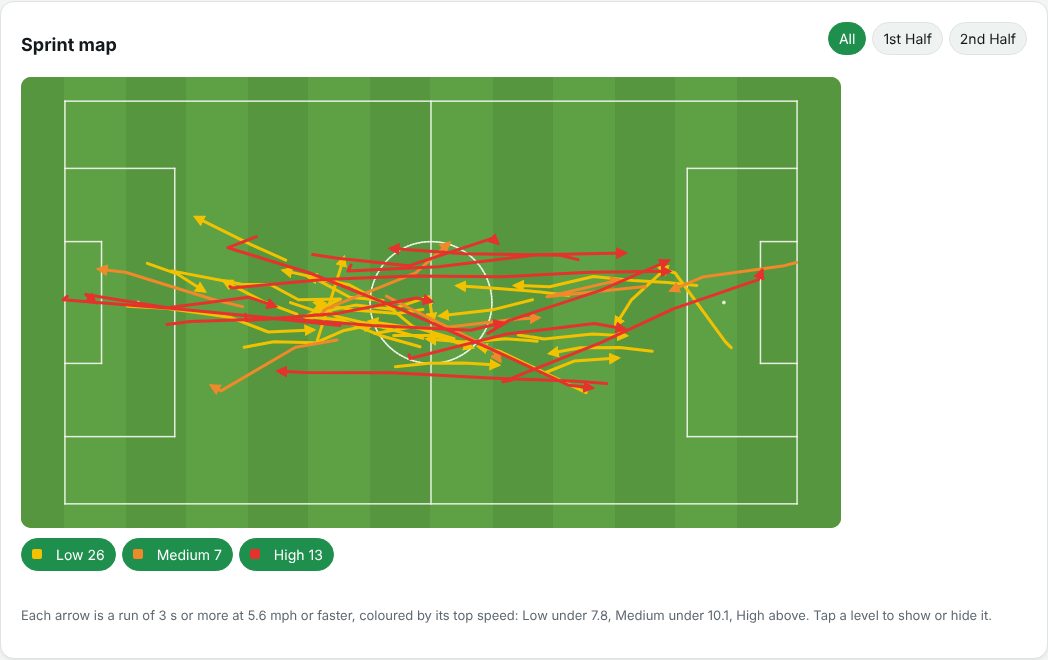
Under the map, the sprint map leaves out the walking and shows only your fast runs: each run of 3 seconds or more at 2.5 m/s (5.6 mph) or faster, as an arrow in the direction you ran. Low (yellow) topped out under 3.5 m/s, Medium (orange) under 4.5 m/s, High (red) above. Tap a level to hide or show it, pick a half, and tap an arrow for its top speed, distance, length and time in the match.
With heart rate on, the Heart rate box shows your average and highest, a chart over the match, and time in five zones:
| Zone | Share of your maximum |
|---|---|
| Z1 Easy | under 60% |
| Z2 Light | 60–70% |
| Z3 Moderate | 70–80% |
| Z4 Hard | 80–90% |
| Z5 Max | 90% and up |
The zones assume a maximum of 190 bpm. Tap the number under the zones to set your own; it's remembered in this browser. Matches recorded with GPS off still show heart rate.
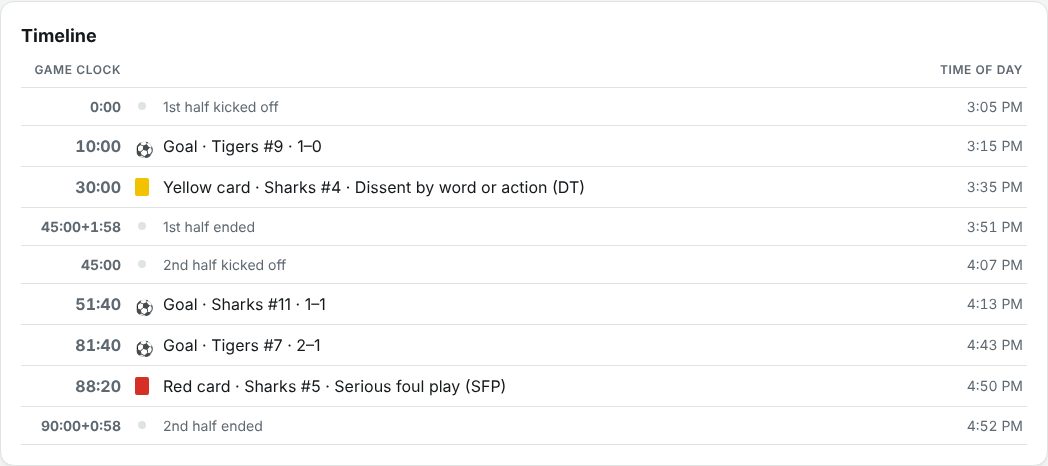
- Game clock: counting up from 0:00 through the match, so the 2nd half starts at 45:00 in a 2×45. Added time shows as
45:00+1:58. - Time of day: when it actually happened, e.g. a goal at 10:00 on the game clock at 3:15 PM.
Tap a goal or card to find it on the map or pitch. The score after each goal is shown next to it.
Heart rate (in its own box) is drawn against the game clock, with half-time as a dashed line and the zones as coloured bands, their heart rates on the left. Hover over or tap the chart to read the minute, heart rate and zone at that moment.
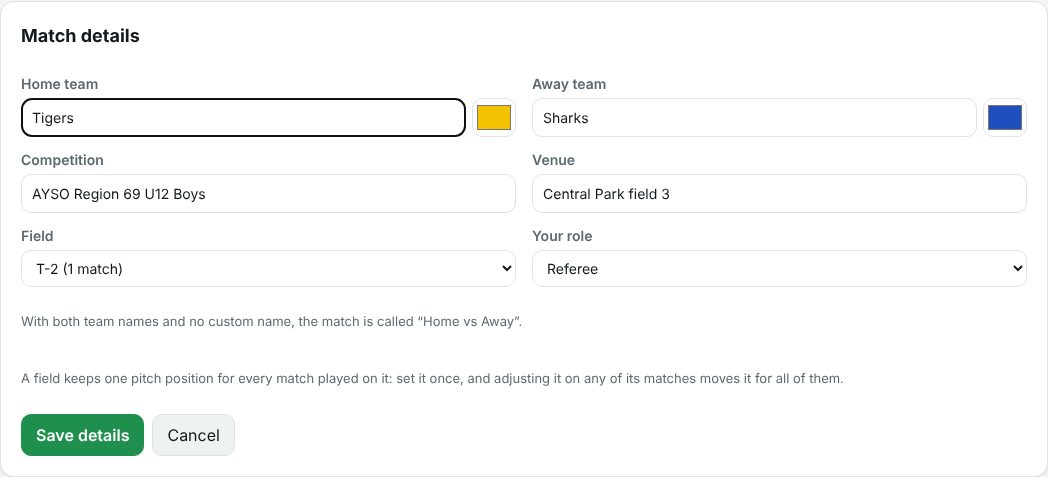
Edit details sets the teams and shirt colours, competition, venue, the field, and your role (referee, assistant referee or 4th official). With both teams set, the match is called Home vs Away. The pencil next to the name renames it to anything you like; clear the name to go back.
Competition and role are filters on the Trends page. Matches from an upcoming match arrive with their details filled in, and a re-upload from the watch never overwrites what you set here.
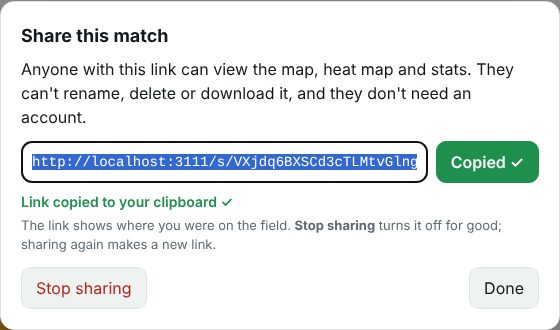
Share makes a link like ref.bokin.fyi/s/… and copies it, for a mentor, an assessor or a group chat. Pasted into a message, it shows the match name, distance and a heat-map picture.
- Anyone with the link can view the map, heat map, stats and timeline, without an account.
- They can't rename, edit, share, export or delete anything, and they don't see your email.
- Stop sharing turns the link off for good. Sharing again makes a new link. Shared matches have a Shared tag in your list.
The link shows where you were on the field, so share it with people you'd tell that to.
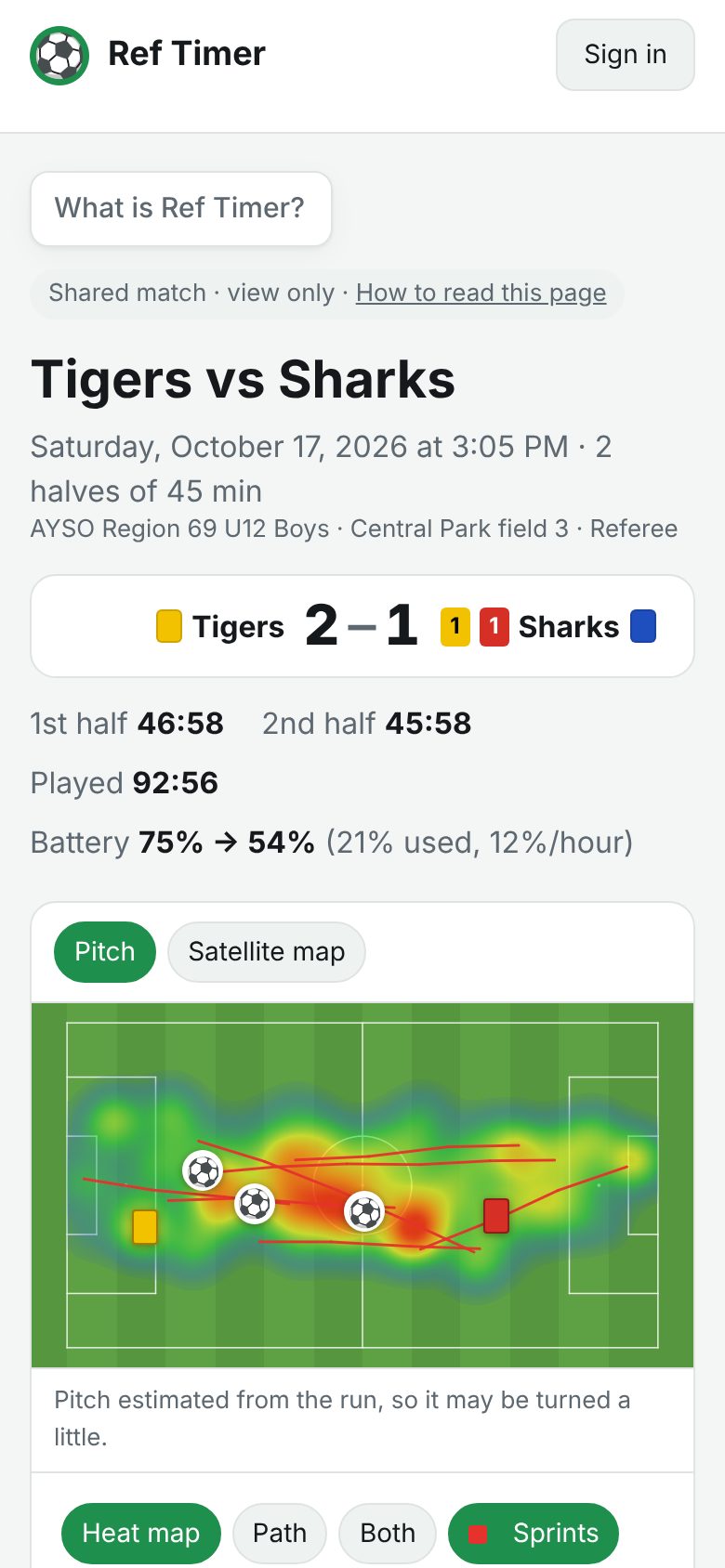
Someone shared a match with you. You're looking at the referee's match, view only:
- The score and timeline show the goals and cards they logged on their watch, with the game clock and time of day.
- The pitch shows where they ran: a heat map (red is where they spent the most time), their path and sprints in red.
- All 1st Half 2nd Half switch between halves; the stats explain distance, speed zones and sprints.
Nothing you do here changes the match. Referees can sign in to Ref Timer for their own.
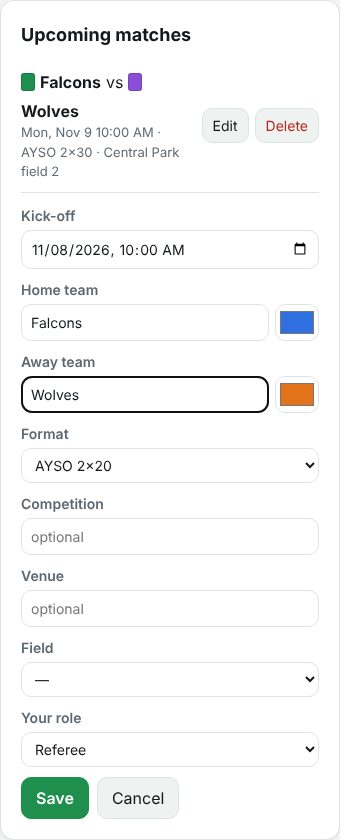
On the Matches page, Add a match sets up a match ahead of time: kick-off, teams and shirt colours, format, competition, venue and your role.
When the watch's home screen opens with your phone nearby, it fetches your upcoming matches. The next one becomes the big button on the home screen, and the setup screen's Match row offers the rest. The teams and colours appear on the Goal/card screens, and the match uploads with its details already filled in.
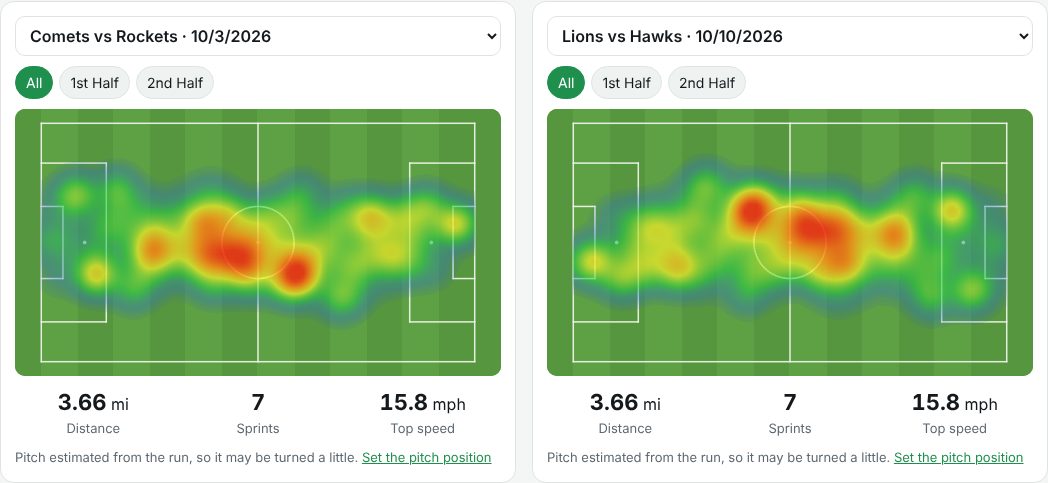
Pick any two matches, and any half of each, to see how your positioning differs: a tight game against an open one, a first half against a second. Each panel says whether its pitch is set or estimated; set it on the match for a fair comparison.
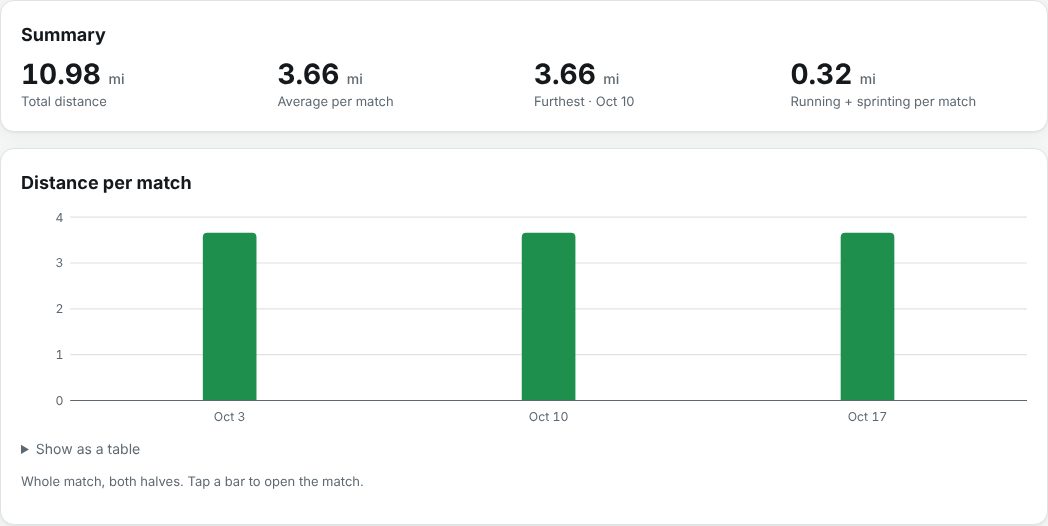
Your season at a glance, filtered by season, competition and role:
- Matches: how many, minutes played, goals and cards, matches per month.
- Distance and Speed: per match, with averages and bests.
- Positioning: a career heat map, every match as the referee drawn on the same pitch and averaged, and your positioning scores.
- Heart rate, Cards (with reasons) and Battery.
Hover a bar for details, tap it to open the match, or choose Show as a table.
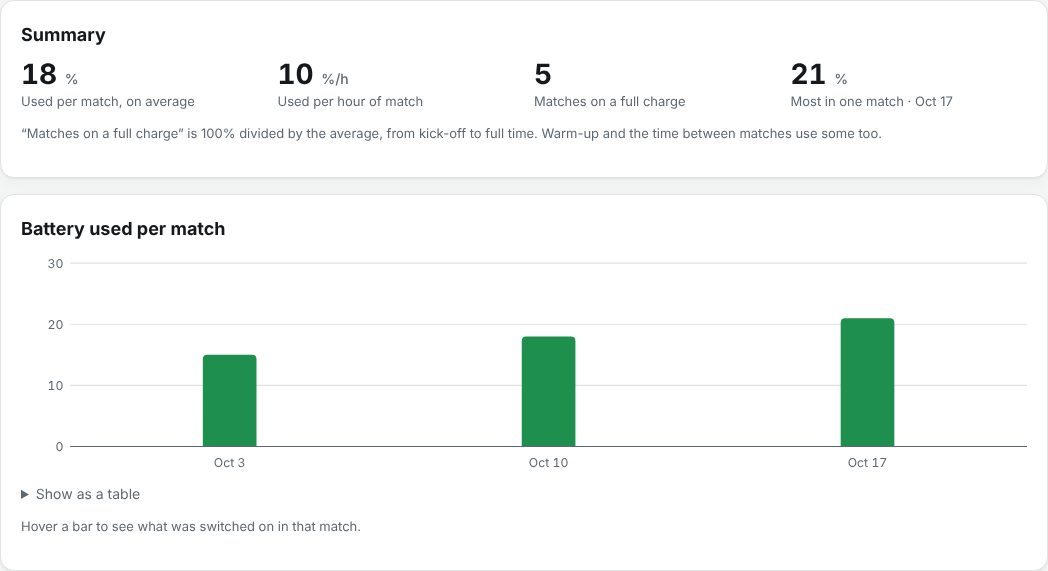
The watch notes its battery level at kick-off and at full time. The match page shows what that match used (and per hour). Trends → Battery shows it over time, roughly how many matches fit on a full charge, and, hovering a bar, whether GPS, heart rate and the always-on screen were on, so you can see what costs the most and whether the watch will last a tournament day.
"Matches on a full charge" counts kick-off to full time only. Warm-up and time between matches use some battery too.
Your avatar (top right) opens a menu with Profile and watch, this help page, Sign out and the site version.
Profile shows your account, your connected phones, and Delete account.
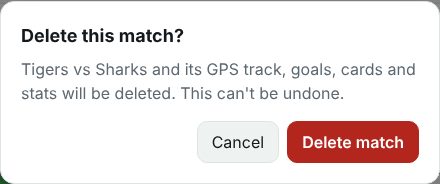
Deleting things. Every delete asks first, in a dialog that says exactly what will go. Deleting your account removes every match with its track and stats, your upcoming matches, connected phones and share links; you type delete to confirm, and it can't be undone.
Open a track file shows a track from the watch (.csv) or any .gpx file (from Strava, Garmin and so on) on the map with the same stats, without an account. The file stays in your browser; nothing is uploaded. Demo match loads a made-up track to try it.
For your account: your Google name, email and picture; your matches (times, settings, goals and cards, battery readings, the GPS and heart-rate track and stats worked out from them); match details and pitches you set; upcoming matches; and your connected phones (stored as a fingerprint of their key, not the key itself).
Share links are off until you turn them on, and shared pages aren't listed in search engines. Deleting your account deletes all of it.